
こんにちは!吉田です。
今回は以前紹介した、Global Secure Access (GSA)のARM64版をIntuneでインストーラーをアプリ配布する手順について解説していきたいと思います。
以前のブログはこちら↓
Global Secure Access (GSA) と条件付きアクセスの連携についてのざっくり解説 | ATD InnoSolutions
前提条件
前提としてARM64のデバイスでは、標準のx64インストーラーを使用することができません。なのでARM64専用のクライアントツールをインストールする必要があります。
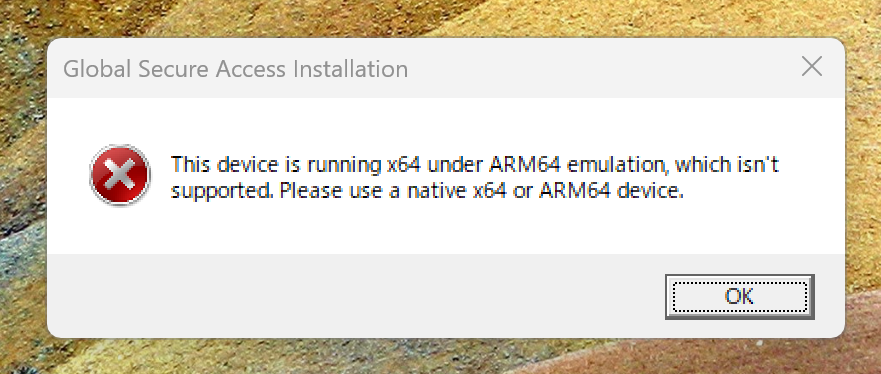
もしARM64に標準のインストーラーをアプリ配布してしまった場合、以下のようなエラーが表示されます。
このエラーが表示された方はこれから解説する手順をお試しください。
Intunewinファイルの作成
①インストーラーのインストール
まずはintunewinファイルを配布するために以下のリンクからインストーラーをインストールします。
以下のMicrosoft Learnの前提条件の箇所に以下の記載がありますので、そのリンクをクリックしダウンロードを開始してください。
Windows 用グローバル セキュリティで保護されたアクセス クライアント – Global Secure Access | Microsoft Learn
Arm デバイス上の Windows (Surface Pro や Surface Laptop と Snapdragon プロセッサを搭載) には、 https://aka.ms/GlobalSecureAccess-WindowsOnArmで使用できる別のクライアント インストーラーが必要です。 Arm64 デバイスで標準の x64 インストーラーを使用しないでください。
②Powershellスクリプト
以下のPowershellスクリプトをデバイスにps1ファイルとして保存します。
このスクリプトによって、Global Secure Access(ARM64版)のクライアントのサイレントインストールと、必要に応じてIPv4を優先する設定を行い、処理結果をログとして記録します。
また、インストール後に再起動が必要かどうか判定することも可能です。
# Create log directory and log helper
$logFile = "$env:ProgramData\GSAInstall\install.log"
New-Item -ItemType Directory -Path (Split-Path $logFile) -Force | Out-Null

function Write-Log {
    param([string]$message)
    $timestamp = Get-Date -Format "yyyy-MM-dd HH:mm:ss"
    Add-Content -Path $logFile -Value "$timestamp - $message"
}

try {
    $ErrorActionPreference = 'Stop'
    Write-Log "Starting Global Secure Access client installation."

# IPv4 preferred via DisabledComponents registry value
    $ipv4RegPath    = "HKLM:\SYSTEM\CurrentControlSet\Services\Tcpip6\Parameters"
    $ipv4RegName    = "DisabledComponents"
    $ipv4RegValue   = 0x20  # Prefer IPv4 over IPv6
    $rebootRequired = $false

# Ensure the key exists
    if (-not (Test-Path $ipv4RegPath)) {
        New-Item -Path $ipv4RegPath -Force | Out-Null
        Write-Log "Created registry key: $ipv4RegPath"
    }

# Get current value if present
    $existingValue = $null
    $valueExists = $false
    try {
        $existingValue = Get-ItemPropertyValue -Path $ipv4RegPath -Name $ipv4RegName -ErrorAction Stop
        $valueExists = $true
    } catch {
        $valueExists = $false
    }

# Determine if we must change it
    $expected = [int]$ipv4RegValue
    $needsChange = -not $valueExists -or ([int]$existingValue -ne $expected)

if ($needsChange) {
        if (-not $valueExists) {
            # Create as DWORD when missing
            New-ItemProperty -Path $ipv4RegPath -Name $ipv4RegName -PropertyType DWord -Value $expected -Force | Out-Null
            Write-Log ("IPv4Preferred value missing. Created '{0}' with value 0x{1} (dec {2})." -f $ipv4RegName, ([Convert]::ToString($expected,16)), $expected)
        } else {
            # Update if different
            Set-ItemProperty -Path $ipv4RegPath -Name $ipv4RegName -Value $expected
            Write-Log ("IPv4Preferred value differed. Updated '{0}' from 0x{1} (dec {2}) to 0x{3} (dec {4})." -f $ipv4RegName, ([Convert]::ToString([int]$existingValue,16)), [int]$existingValue, ([Convert]::ToString($expected,16)), $expected)
        }
        $rebootRequired = $true
    } else {
        Write-Log ("IPv4Preferred already set correctly: {0}=0x{1} (dec {2}). No change." -f $ipv4RegName, ([Convert]::ToString($expected,16)), $expected)
    }

# Resolve installer path
    $ScriptRoot = if ($PSScriptRoot) { $PSScriptRoot } else { Split-Path -Parent $MyInvocation.MyCommand.Path }
    $installerPath = Join-Path -Path $ScriptRoot -ChildPath "GlobalSecureAccessClient.exe"
    Write-Log "Running installer from $installerPath"

if (Test-Path $installerPath) {
        $installProcess = Start-Process -FilePath $installerPath -ArgumentList "/quiet" -Wait -PassThru

if ($installProcess.ExitCode -eq 1618) {
            Write-Log "Another installation is in progress. Exiting with code 1618."
            exit 1618
        } elseif ($installProcess.ExitCode -ne 0) {
            Write-Log "Installer exited with code $($installProcess.ExitCode)."
            exit $installProcess.ExitCode
        }

Write-Log "Installer completed successfully."
    } else {
        Write-Log "Installer not found at $installerPath"
        exit 1
    }

if ($rebootRequired) {
        Write-Log "Reboot required due to registry value creation or update."
        exit 3010  # Soft reboot required
    } else {
        Write-Log "Installation complete. No reboot required."
        exit 0
    }
}
catch {
    Write-Log "Fatal error: $_"
    exit 1603
}
③Intunewinファイルの作成
ダウンロードした exe ファイルと保存したps1ファイルを Intune で配布可能な形式 (.intunewin パッケージ) に変換します。
フォルダーにps1ファイルとインストーラーを配置します。
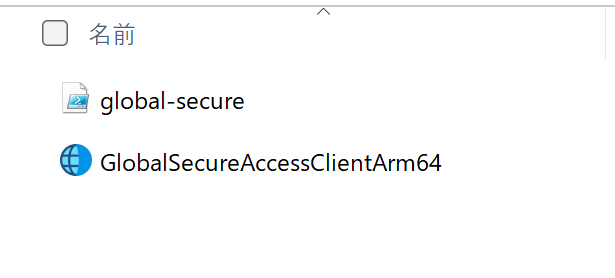
そしてMicrosoft 提供の Win32 コンテンツ準備ツール (IntuneWinAppUtil.exe) を実行し、exe をパッケージ化します
Win32 アプリを追加し、Microsoft Intune に割り当てる | Microsoft Learn
実行したら以下の内容を入力し、Intunewinファイルを作成します。
Please specify the source folder: ps1ファイルとインストーラーを配置したフォルダーのパス
Please specify the setup file: ps1ファイルのパス
Please specify the output folder: intunewinファイルを配置するフォルダーのパス
Do you want to specify catalog folder(Y/N)?: N
アプリを配布する
- Intune管理センターにアクセスします。
- [アプリ]>[すべてのアプリ]>[作成] を選択します。
- [アプリの種類の選択] の [その他]>[Windows アプリ (Win32)] を選択します。
- ①アプリ情報で、[アプリ パッケージ ファイルの選択] で作成したIntunewinファイルを選択します。名前と説明を入力し、次へ進みます。
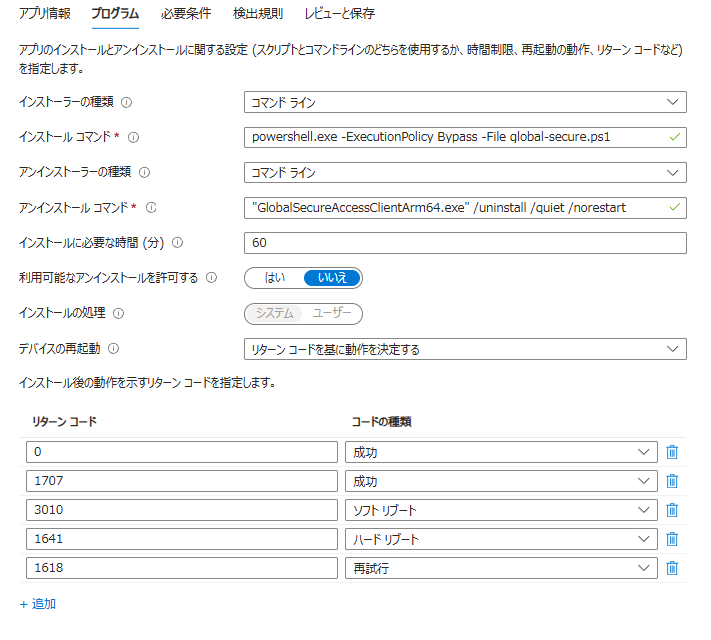
- ②プログラムで、以下の内容を設定します。
・インストールコマンド:powershell.exe -ExecutionPolicy Bypass -File [ps1ファイルの名前].ps1
・アンインストールコマンド:”GlobalSecureAccessClientArm64.exe” /uninstall /quiet /norestart
・利用可能なアンインストールを許可します: いいえ
・インストールの処理: システ
・デバイスの再起動: リターンコードを基に動作を決定する
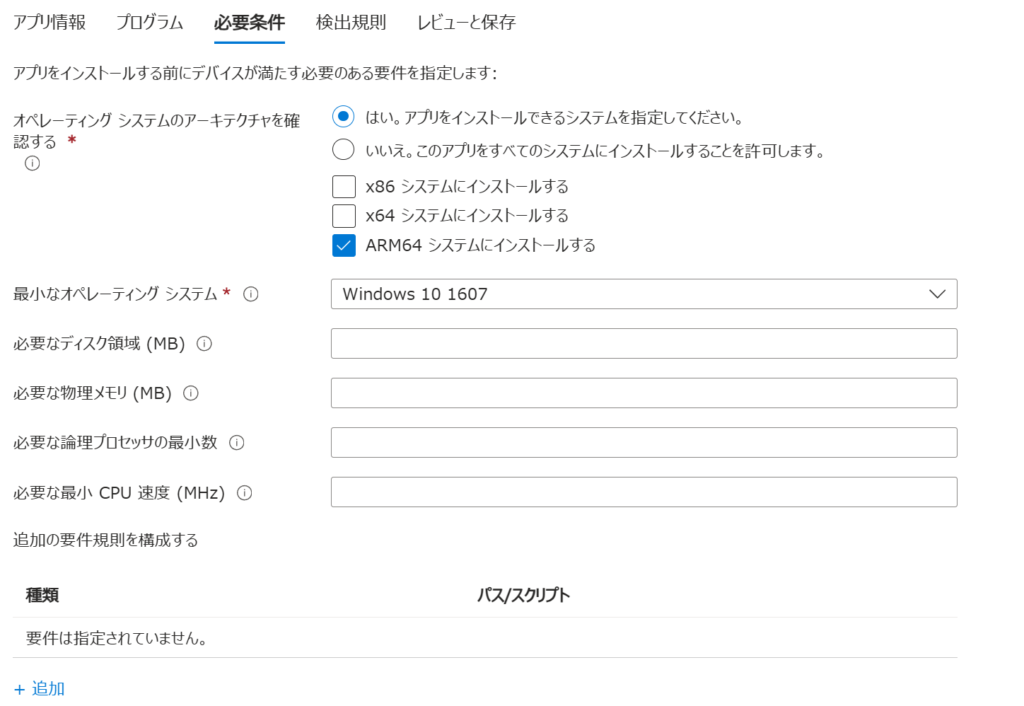
- ③必要条件で、以下の内容を設定します。
・オペレーティングシステムのアーキテクチャを確認する:はい。アプリをインストールできるシステムを指定してください。
ARM64システムにインストールするを選択。
・最小のオペレーティングシステム:Windows 10 1607
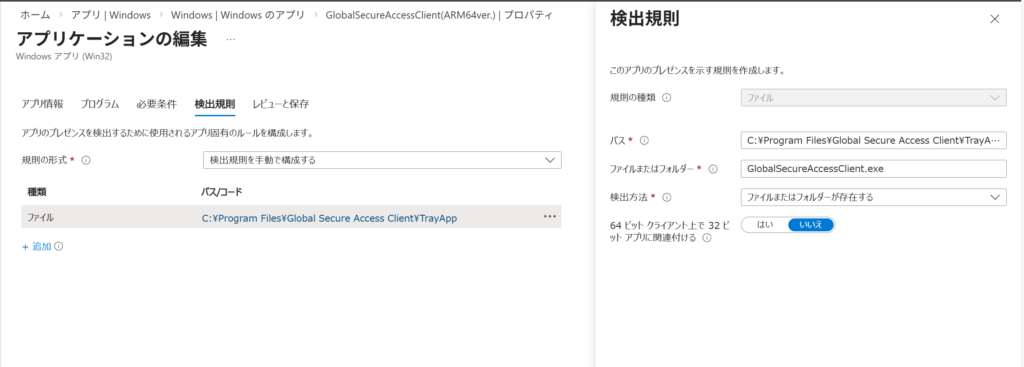
- ④検出規則で、以下の内容を設定します。
・規則の種類:ファイル
・パス:C:\Program Files\Global Secure Access Client\TrayApp
・ファイルまたはフォルダー:GlobalSecureAccessClient.exe
・検出方法:ファイルまたはフォルダーが存在する
- 割り当てるグループを選択し、作成をクリックします。
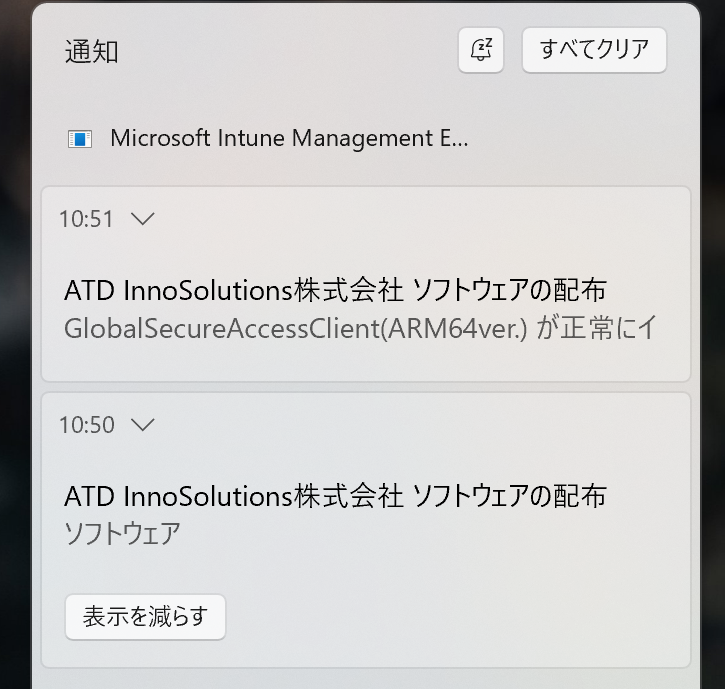
しばらくすると対象のデバイスにIntuneから通知がきてインストールが開始されます。
再起動が必要という通知が届いた場合、再起動することでインストールが完了します。
いかがでしたか?最近話題のcopilot+pcにはARM64が使用されていることがほとんどなので、インストールできずにお困りの方は是非お試しください!